Home
Posts filed under Android Solution
How to Unlock Android Phone Password or Pattern Lock

How to Unlock Screen Lock
- Incorrectly enter your pattern for 5 times. On the fifth attempt, you will get a message informing you that you must wait for 30 seconds before you can try again. Tap ‘Next’ and a button will appear underneath the pattern grid that says ‘Forgot Pattern’. Tap on it.
- Next, you’ll get an option to choose whether you want to unlock your phone through answering the security question that you might have set when you used your device for the very first time, or by entering your Google login details.
- If you are using the security question, then simply type the answer of the question and unlock your device quickly. Otherwise check the Google account option and click ‘Next’. Now, provide your Google account username and password attached with your device and click on ‘Sign in’.
- Once your security question answer or your Google ID is verified, you will be given an option to choose your new security lock, such as PIN code, pattern and password. Select the security option that you prefer and enter your new password or pattern.
- That’s it! Now you will be able to use your new security lock to unlock your phone.
How to Free Up Space On Android
- Uninstall Unused Applications
If you have some apps that you no longer use on your Android phone or tablet, uninstalling them will free up some space and increase your phone performance. To do so, go toSettings -> Applications manager and uninstall the apps you don’t want.
- Clear App Cache
You can also clear app’s cache on your phone. Clearing the cache removes an application’s temporary files and thus can free up some space. In order to do that, go to Settings >Applications manager, find apps that take up the most space, and then tap on ‘Clear cache’.
- Delete Unnecessary Files and Folders
Most of the people leave the download files on their gadgets after use. These files consumes lot of space and your device becomes unavailable for your next downloads. Deleting unnecessary data regularly keeps your device space free. In this case, try an app called DiskUsage that helps you to find the files and directories on storage card which consume a lot of space. It displays all the information graphically, making it easy to see which files or content are eating up the most space. Just be careful to when you decide to delete something you see in DiskUsage that is what you think it is.
- Move Apps and Media Files to SD Card
Moving apps and media files to your SD card’s storage would not only free up your phone’s internal storage but it also would increase your phone’s performance. To move supported apps to sd card, you can use the App Manager App . This app is free and doesn’t require the roots access on your phone. All you have to do is install this app on your phone and you are ready to go. Please keep in mind that not all the apps can be moved to the external storage. Some apps require to be stored on the phone internal storage and they can’t be moved from there.
How to Factory Reset Your Android Phone or Tablet
How to factory reset Android: the quick and easy way
1 Trick -
- Go into Settings
- Go into Personal > Backup and Reset
- Enter your password or PIN if requested
- Make sure Automatic Restore is checked
- Tap on Factory Reset Data > Reset Phone
- Again, you might be prompted for your password or PIN here
- Tap Delete Everything
- Choose Reboot
Trick 2
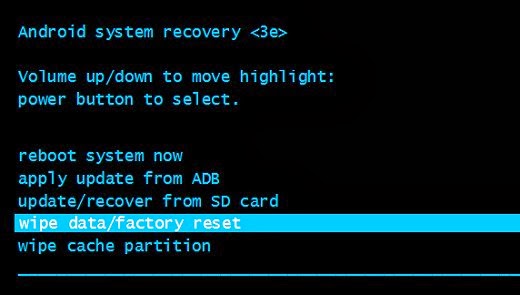
- How to factory reset Android when you can’t get into the Settings screen
- Turn off your device
- Press and hold Volume Down and Power while the device turns itself on
- When you see the options screen, use Volume Down to move down and highlight Recovery Mode
- Press the Power button to confirm your selection
- Wait for the image of the sad Android, then hold down Power. Keep it held and press and release the Volume Up button.
- Once again, use the Volume Down button to navigate. This time you want Wipe Data / Factory Reset. Use Power to confirm the selection.
- Use Volume Down to highlight the Yes -- Delete All User Data option. Use Power to confirm.
- Wait a bit for the reset to do its stuff and then choose Reboot to restart your device.